
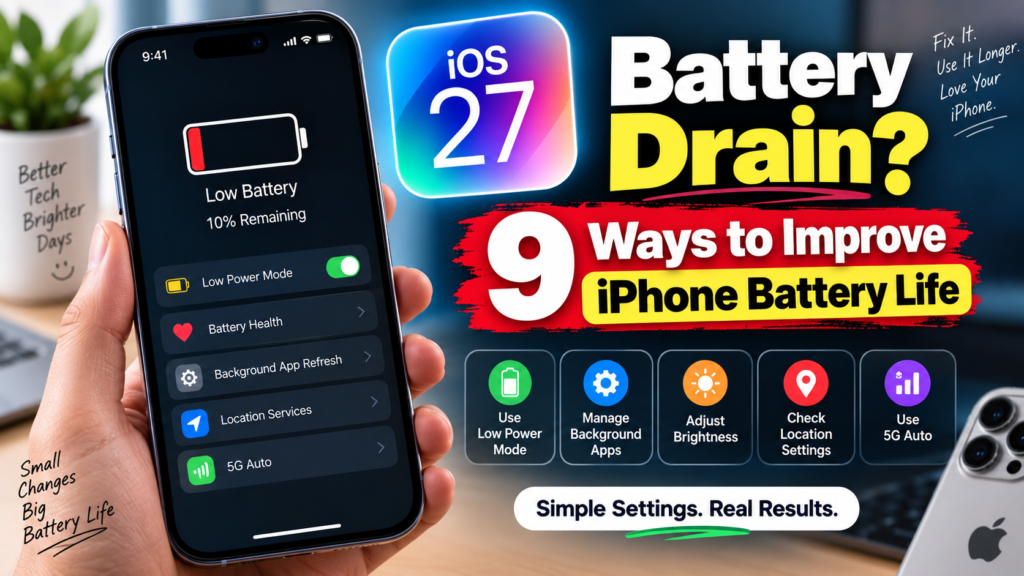
iOS 27 battery drain:-Updated your iPhone to iOS 27 and suddenly feel like the battery is disappearing much faster than it did last week?
Before you start turning off every feature on your phone, there’s something important to know: higher battery use immediately after a major iOS update can be normal.
Apple says that after an update, the iPhone may continue doing setup work in the background. That can include indexing files, finishing system setup, syncing data, and other tasks that temporarily affect both battery life and temperature. Apple specifically recommends giving the phone a few days before judging post-update battery performance.
So if you installed iOS 27 yesterday and your phone is running warmer or losing charge faster than usual, don’t assume the battery is damaged.
That said, if the drain feels excessive—or it continues after a few days—these are the settings I would check first.
1. Give iOS 27 a Few Days to Finish Background Work
This is the first thing I’d do before changing anything major.
After an iOS update, your iPhone may still be processing:
- Search indexing
- Photos and file organization
- App updates
- System setup
- Background syncing
- Siri and Spotlight-related indexing
Apple notes that you may even see an “Ongoing iOS Update” insight inside:
Settings → Battery
While that background work is happening, battery life and thermal performance can temporarily be worse.
What should you do?
Use the phone normally for a couple of days.
Keep it connected to Wi-Fi when possible and charge it as usual.
If the battery starts returning to normal after two or three days, the issue was probably post-update processing rather than a permanent iOS 27 battery problem.
Recent reporting on iOS 27 has also noted this temporary drain after installation, particularly while background indexing completes.
2. Check What Is Actually Using Your Battery
Instead of guessing, let iOS show you what is draining the battery.
Go to:
Settings → Battery
Look at the Daily Usage section.
Then tap:
View All Battery Usage
Apple shows which apps and system activities used the most battery today and over previous days.
Pay attention to labels such as:
Background Activity
An app is doing work while you aren’t actively using it.
No Mobile Coverage / Low Signal
Your iPhone is using extra power trying to stay connected.
Notifications
Frequent notifications may be waking the display.
This page is often more useful than installing a third-party “battery optimizer” app.
If one app suddenly accounts for a huge percentage of your battery after the update, start there.
3. Turn On Adaptive Power
If your iPhone supports it, Adaptive Power is one of the best settings to enable.
On supported models, go to:
Settings → Battery → Power Mode → Adaptive Power
Apple says Adaptive Power uses on-device intelligence to predict when you may need extra battery life and can make small adjustments such as reducing brightness, limiting background activity, and adjusting performance.
It can also automatically enable Low Power Mode when your battery reaches 20%.
Apple currently supports Adaptive Power on newer models including iPhone 15 Pro and later supported devices, with availability depending on the model.
If you have a newer iPhone, this is one setting I’d definitely check after moving to iOS 27.
4. Use Low Power Mode When You Need It
Low Power Mode is not just for emergencies.
If your battery is draining faster than expected while iOS 27 settles in, turning it on for part of the day can help.
Go to:
Settings → Battery → Power Mode → Low Power Mode
On older supported iPhones, the setting may appear directly under Battery.
Low Power Mode reduces several background processes and features, including Background App Refresh, Mail fetch, some visual effects, and other power-intensive activities.
You don’t need to keep it enabled forever.
Use it when:
- You’re traveling
- You’re away from a charger
- Battery drain is temporarily higher after an update
- You know you have a long day ahead
It automatically turns off after the battery is charged above 80%.
5. Check Background App Refresh
One of the easiest ways for apps to quietly use battery is through background activity.
Go to:
Settings → General → Background App Refresh
Now look at the apps listed there.
You probably don’t need every app updating in the background.
For example, a banking app, shopping app, food-delivery app, or game may not need constant background refresh.
You can either:
Turn Background App Refresh off completely
or
Disable it only for apps that don’t need it.
Apple specifically identifies background activity as a potential source of higher battery usage.
I prefer the second option because it keeps useful apps working normally without allowing everything to refresh all day.
6. Reduce Screen Brightness and Check Auto-Lock
The display is one of the biggest battery users on any smartphone.
If you updated to iOS 27 and also started exploring new features, your screen time may simply be higher than normal.
Apple recommends lowering excessive brightness and enabling Auto-Brightness when appropriate.
You can check:
Settings → Accessibility → Display & Text Size → Auto-Brightness
Also review:
Settings → Display & Brightness → Auto-Lock
If Auto-Lock is set to Never, the screen may stay on far longer than necessary.
A simple 30-second or 1-minute Auto-Lock setting can make a noticeable difference for many users.
7. Review Location Access and Notifications
Some apps don’t need constant access to your location.
Go to:
Settings → Privacy & Security → Location Services
Look for apps set to:
Always
Ask yourself whether they genuinely need that level of access.
For many apps, While Using the App is enough.
Apple notes that location activity can contribute to battery usage.
Notifications can also matter.
If dozens of apps are waking the screen all day, battery usage can gradually add up.
Open:
Settings → Notifications
and disable unnecessary alerts from apps you rarely use.
I wouldn’t turn off every notification—just remove the ones that don’t actually help you.
8. Use 5G Auto Instead of Forcing 5G All the Time
Mobile signal strength has a bigger effect on battery life than many people realize.
If your phone constantly searches for a stronger 5G signal, power usage can increase.
Apple recommends using 5G Auto on supported iPhones because the phone can switch to LTE when full 5G speed does not provide a meaningful benefit.
Go to:
Settings → Cellular → Cellular Data Options → Voice & Data → 5G Auto
The exact wording can vary slightly depending on your carrier.
Poor coverage itself can also drain battery faster because the phone keeps working to maintain a connection.
If you’re somewhere with almost no signal for a long time, Airplane Mode can sometimes save a surprising amount of battery.
9. Check Battery Health
If iOS 27 has been installed for several days and your battery still drops unusually fast, check the battery itself.
Go to:
Settings → Battery → Battery Health
On some older models, the menu may appear as:
Battery Health & Charging
Battery capacity naturally decreases as lithium-ion batteries age.
Apple says that if you see a Service message in Battery Health, battery replacement may be worth considering.
This is important because sometimes an iOS update gets blamed for a problem that was already developing in an older battery.
For example, if your phone already had significantly reduced battery capacity before iOS 27, the update may simply make the problem more noticeable because you’re using the device more heavily.
Should You Turn Off Everything to Save Battery?
No.
I wouldn’t recommend turning a modern iPhone into a basic phone just to gain another hour of battery life.
You don’t need to disable:
Wi-Fi, Bluetooth, every notification, every location feature, animations, Siri, widgets, and everything else at the same time.
That makes the phone less useful and makes troubleshooting harder.
Instead, start with Settings → Battery.
Find the real source of battery usage and adjust only the settings that make sense for you.
That is a much better approach than copying a list of 30 settings and turning all of them off.
Is iOS 27 Battery Drain Permanent?
In many cases, no.
Apple specifically says battery life can temporarily decrease after a software update because update-related work continues in the background. Once those tasks finish, battery life should return closer to normal.
So if your battery drain started immediately after installing iOS 27, I would wait a few days before deciding that something is wrong.
If the problem continues after that, then check:
- Battery usage by app
- Background activity
- Battery health
- Signal strength
- Location services
- Adaptive Power
- Low Power Mode
What About iPhone Overheating After iOS 27?
Some extra warmth immediately after a major update can be related to the same background processing that affects battery life.
Apple notes that ongoing update and device setup activity can temporarily affect thermal performance.
But there’s an important difference between warm and very hot.
If your iPhone becomes extremely hot, repeatedly shows a temperature warning, shuts down unexpectedly, or stays hot for hours without heavy use, that is not something I would simply ignore.
In that situation:
Stop charging it temporarily,
remove a thick case if necessary,
move it away from direct sunlight,
and contact Apple Support if the behavior continues.
Quick Checklist: What I Would Do First
If your iPhone battery started draining immediately after iOS 27, my order would be:
First: Wait 2–3 days after the update.
Second: Open Settings → Battery and check the biggest battery users.
Third: Turn on Adaptive Power if supported.
Fourth: Use Low Power Mode when necessary.
Fifth: Reduce unnecessary background activity, location access, and notifications.
Sixth: Check Battery Health if the problem continues.
That is usually more useful than randomly disabling features.
Final Thoughts
The iOS 27 battery drain issue may look worrying immediately after an update, but temporary battery loss does not automatically mean the update has damaged your phone.
A major iOS update triggers background tasks that can temporarily use more processing power and battery.
Give the phone a few days first.
Then use the Battery section in Settings to figure out what is actually consuming power.
If you have a supported model, Adaptive Power is worth enabling, and Low Power Mode remains useful when you need extra battery life.
Most importantly, avoid changing twenty settings at once.
Make one or two adjustments, monitor the battery for a day, and see what actually helps.
That way, you improve battery life without giving up the features that make your iPhone useful.
Frequently Asked Questions
Why is my iPhone battery draining after iOS 27?
A major iOS update can continue performing background tasks after installation, including indexing and setup work. Apple says this can temporarily affect battery life and thermal performance.
How long should battery drain last after an iOS update?
Apple advises waiting a few days and then checking battery life again. The exact time can vary depending on the device and the amount of background processing required.
Should I use Low Power Mode after updating to iOS 27?
You can. Low Power Mode reduces background activity and other power-consuming features, which can help when battery drain is higher than usual.
What is Adaptive Power on iPhone?
Adaptive Power automatically makes small performance and background-activity adjustments when your phone predicts you may need extra battery life. It is available on supported newer iPhone models.
Does 5G drain more battery?
Poor or constantly changing mobile signal can increase battery use. Apple recommends 5G Auto on supported devices because it can switch to LTE when full 5G speed is unnecessary.
Should I replace my battery after iOS 27?
Not just because you updated. First give the update time to finish background processing and check Battery Health. If iOS shows a Service message or the battery is significantly degraded, replacement may be worth considering.
Official Sources
Apple Support — If the battery in your iPhone or iPad drains too quickly
Apple Support — Use Adaptive Power to extend iPhone battery life
Apple Support — Use Low Power Mode
Apple Support — About Spotlight indexing
Last Updated: September 18, 2026