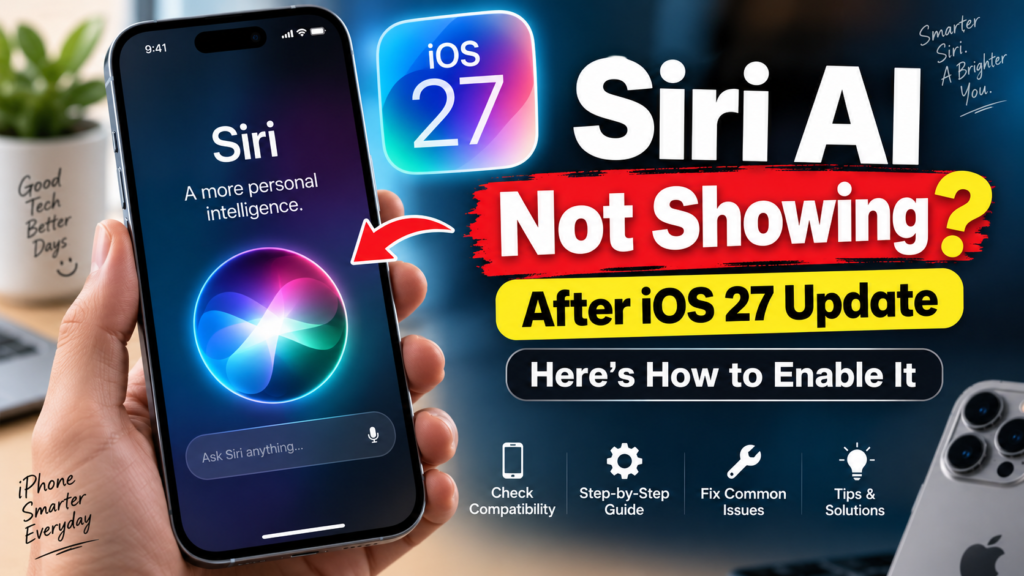
Siri AI Not Showing iOS 27? Try These 7 Fixes
If you updated your iPhone to iOS 27 and expected the new Siri AI to appear right away, but you’re still seeing the old Siri experience, don’t start changing random settings yet.
The first thing to check is actually very simple: does your iPhone support Siri AI at all?
Apple has started rolling out Siri AI in beta with iOS 27, but the feature only works on Apple Intelligence-capable iPhones. Apple currently lists the iPhone 15 Pro, iPhone 15 Pro Max, and iPhone 16 models or later as supported devices for Siri AI.
So, even if your iPhone can install iOS 27, that does not automatically mean it can use the new Siri AI.
That one detail is where a lot of the confusion starts.
Why Siri AI May Not Be Showing on Your iPhone – Why does siri stop working on my iphone
There are a few common reasons Siri AI may be missing after an iOS 27 update:
- Your iPhone model does not support Apple Intelligence.
- Siri AI is not enabled yet.
- Your Siri or device language is not supported.
- Your region does not currently support Siri AI.
- Your iPhone is not fully updated.
- Siri itself is turned off.
Apple says Siri AI is currently available in beta in English and requires an Apple Intelligence-enabled device.
For U.S. users, the setup should be fairly straightforward if the device is supported.
Step 1: Check If Your iPhone Supports Siri AI
Before doing anything else, check your iPhone model.
Siri AI works on:
iPhone 15 Pro
iPhone 15 Pro Max
iPhone 16 models or later
Apple’s support documentation confirms that Siri AI requires an Apple Intelligence-enabled iPhone.
If you have a standard iPhone 15, iPhone 14, iPhone 13, or another older model, you may still be able to install iOS 27, but the Siri AI option may not appear.
That is not necessarily a bug.
Step 2: Make Sure You’re Actually Running iOS 27
Go to:
Settings → General → About
Check the iOS version shown on the screen.
If you are not on iOS 27 yet, go to:
Settings → General → Software Update
and install the latest available update.
Apple began rolling out iOS 27 and Siri AI in September 2026.
If a newer iOS 27.x update is available, it is also worth installing that before troubleshooting further.
Step 3: Turn On Siri AI
This is the part most users are looking for.
On a supported iPhone, go to:
Settings → Siri
If Siri is turned off, tap:
Turn On Siri
Then tap:
Try Siri AI (Beta)
If Siri is already enabled, you should see:
Try Siri AI (Beta)
directly inside the Siri settings.
Apple officially documents this activation process for iOS 27.
Follow the onscreen instructions and complete the setup.
If “Try Siri AI (Beta)” Is Missing
If that option still does not appear, check your language settings next.
Siri AI is currently rolling out in English first. Apple says support for additional languages is expanding later.
For users in the United States, I would keep these settings:
iPhone Language: English (US)
Siri Language: English (United States)
You can check them here:
Settings → General → Language & Region
and:
Settings → Siri
If your phone is using a language that Siri AI does not currently support, the feature may not appear.
Restart Your iPhone Once
This is a simple step, but it is worth doing after a major iOS update.
Restart your iPhone, connect it to Wi-Fi, wait a couple of minutes, then go back to:
Settings → Siri
and check again.
You don’t need to factory reset the phone or erase anything.
A normal restart is enough to rule out a temporary setup issue.
Check Your Internet Connection
Siri requires an internet connection to work. Apple specifically notes that Siri needs internet access.
If the Siri AI option appears but setup is not completing, try switching to a stable Wi-Fi network.
If you are already on Wi-Fi, turn Wi-Fi off and back on, then retry.
Turn Siri Off and Back On
If your device is compatible and the language settings look correct, you can try refreshing Siri.
Go to:
Settings → Siri → Turn Off Siri
Restart your iPhone.
Then go back to:
Settings → Siri → Turn On Siri
and check whether Try Siri AI (Beta) appears.
Apple also allows users to switch back to classic Siri from the same settings area, so this menu is the right place to manage the new Siri AI experience.
What’s Actually Different About Siri AI?
This is not just a new animation or interface.
Apple describes Siri AI as a more conversational assistant with:
- Personal context understanding
- Onscreen awareness
- Broader world knowledge
- More actions across apps
- A dedicated Siri app
- Writing and summarizing capabilities
Apple says Siri AI can use context from your messages, mail, photos, and calendar to help find information you need.
That makes it much closer to a modern AI assistant than the older version of Siri.
Siri AI Can Understand What’s on Your Screen
One of the more useful upgrades is onscreen awareness.
You can ask Siri questions about content currently visible on your iPhone screen, including images and PDFs.
For example, if you are looking at a document, you can ask Siri a question about what is shown.
That is much more practical than the old Siri flow, where you often had to manually copy information into another app.
Siri AI Also Works Inside Camera
Apple has also added Siri mode in Camera.
This lets Siri use Visual Intelligence to identify what is in front of the camera, answer questions, search, or take certain actions.
For U.S. users, Apple gives examples such as identifying something through the camera or even helping split a bill using Apple Cash on eligible devices.
Can You Type Instead of Talking to Siri?
Yes.
With Siri AI, you can type your request instead of speaking it.
Apple also supports writing-related tasks such as drafting, rewriting, proofreading, summarizing, and giving feedback on text.
This is useful if you are at work, in a meeting, or simply don’t want to speak out loud.
Is Siri AI Available in the USA?
Yes.
Siri AI is rolling out in beta in English, making the U.S. one of the main supported markets for compatible devices.
Apple says Siri AI will not initially be available on iPhone in the European Union, and it is not currently available in China while regulatory issues are being worked through.
So if you are in the U.S., have a supported iPhone, use English, and are running iOS 27, you should be in a supported situation.
Is Siri AI Free?
Siri AI is included with Apple Intelligence on compatible devices.
Apple does note that some Apple Intelligence features that rely on server-side models may have daily usage limits, and expanded access to certain features may be offered for a fee in the future.
So right now, this should not be understood as a separate mandatory monthly Siri subscription.
If Siri AI Still Doesn’t Show, Check These 5 Things
Before contacting Apple Support, check this quick list:
1. Supported iPhone?
iPhone 15 Pro / 15 Pro Max / iPhone 16 or later.
2. iOS 27 installed?
Check in Settings → General → About.
3. English language selected?
Check both iPhone language and Siri language.
4. Siri enabled?
Settings → Siri.
5. Stable internet connection?
Try Wi-Fi and restart the phone.
If all five are correct and the option is still missing, Apple Support is the next sensible step.
Final Thoughts
If Siri AI is not showing after updating to iOS 27, the most important thing is to check compatibility first.
A lot of users may assume that iOS 27 automatically means Siri AI support, but that is not the case.
For a supported iPhone, the normal path is:
Settings → Siri → Try Siri AI (Beta)
From there, follow the onscreen setup instructions.
If that option is missing, check your iPhone model, iOS version, language, region, and Siri settings before trying anything drastic.
In most cases, those checks will tell you exactly why Siri AI is not appearing.
FAQ
Why is Siri AI not showing after iOS 27?
The most common reasons are unsupported hardware, unsupported language settings, Siri being disabled, or regional availability. Siri AI requires an Apple Intelligence-capable iPhone.
How do I enable Siri AI?
Go to Settings → Siri → Try Siri AI (Beta) and follow the onscreen instructions.
Does iPhone 15 support Siri AI?
The standard iPhone 15 is not listed as an Apple Intelligence-enabled device. Siri AI support starts with the iPhone 15 Pro and iPhone 15 Pro Max, along with iPhone 16 models and later.
Is Siri AI available in the USA?
Yes. Siri AI is rolling out in beta in English on supported devices in the U.S.
Is Siri AI free?
It is part of Apple Intelligence on compatible devices, although some server-side features may have usage limits and expanded access may cost extra in the future.
Can I go back to old Siri?
Yes. Apple allows users to turn off Siri AI and use Siri Classic again.